Leopard Desktop is a companion app for macOS and Windows that syncs, optimizes, and migrates your WordPress media to cloud storage — straight from your computer, without slowing your website down.
What it is
Leopard Desktop works alongside the Leopard WordPress Offload Media plugin. Instead of asking your website to do the heavy lifting (resizing images, transferring files), the app moves that work onto your computer and pushes files directly to your cloud bucket. Your website only records the metadata. The result is faster offloading and migrations, lower server load, and a site that never gets bogged down by media processing.
Key features
Every transfer goes directly between your computer and the cloud — the bytes never pass through your website’s PHP.
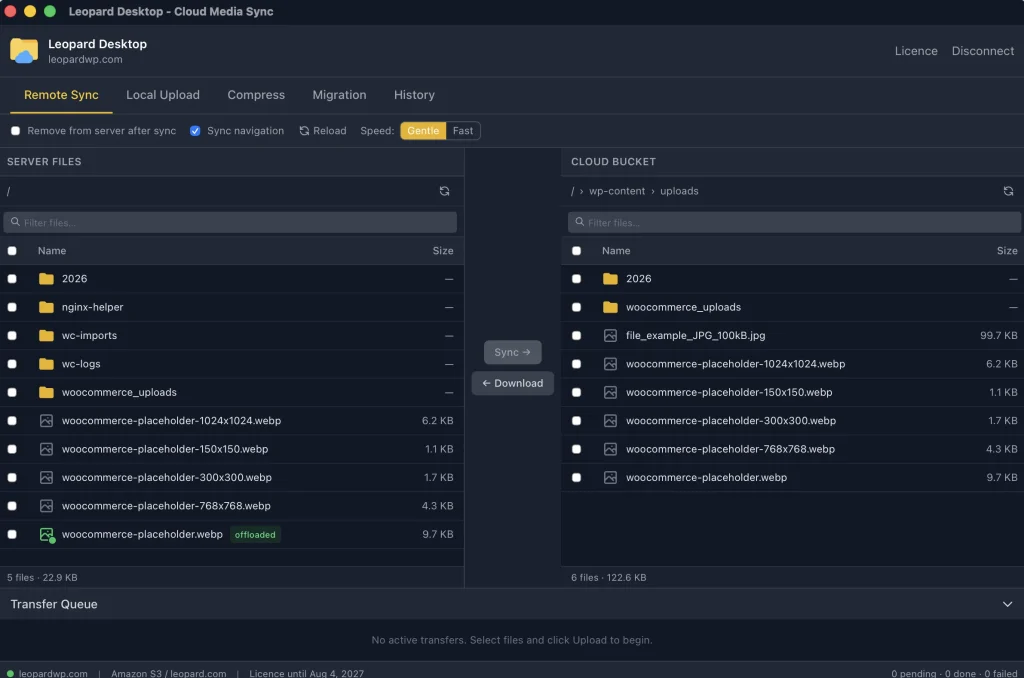
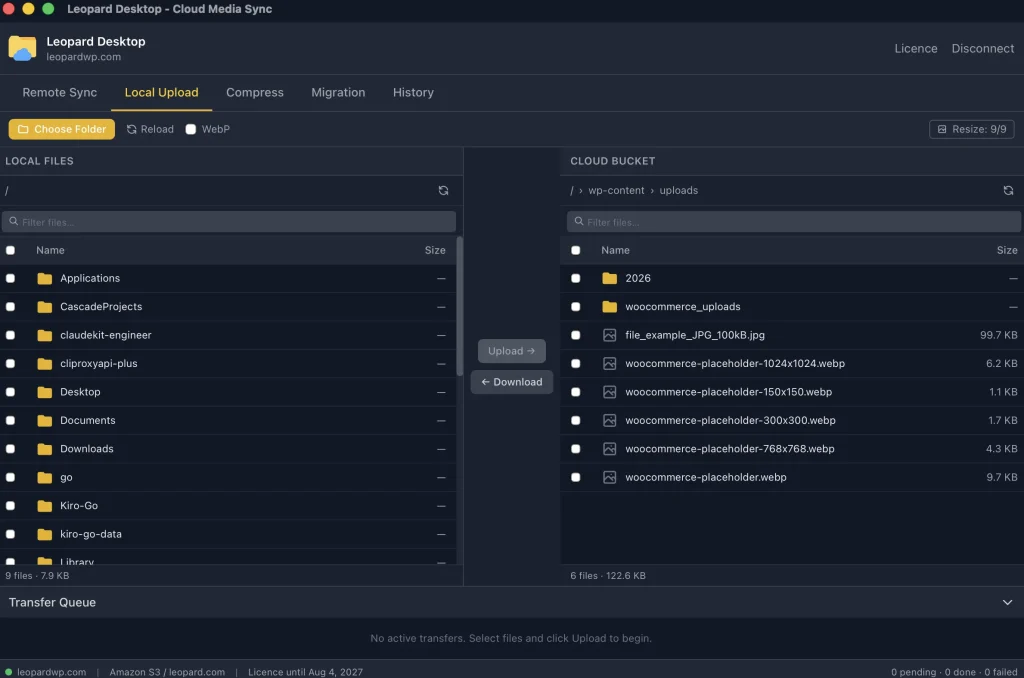
- Remote Sync — push files from your server to the cloud bucket, or pull them back, in batches, with a speed control that keeps your site responsive.
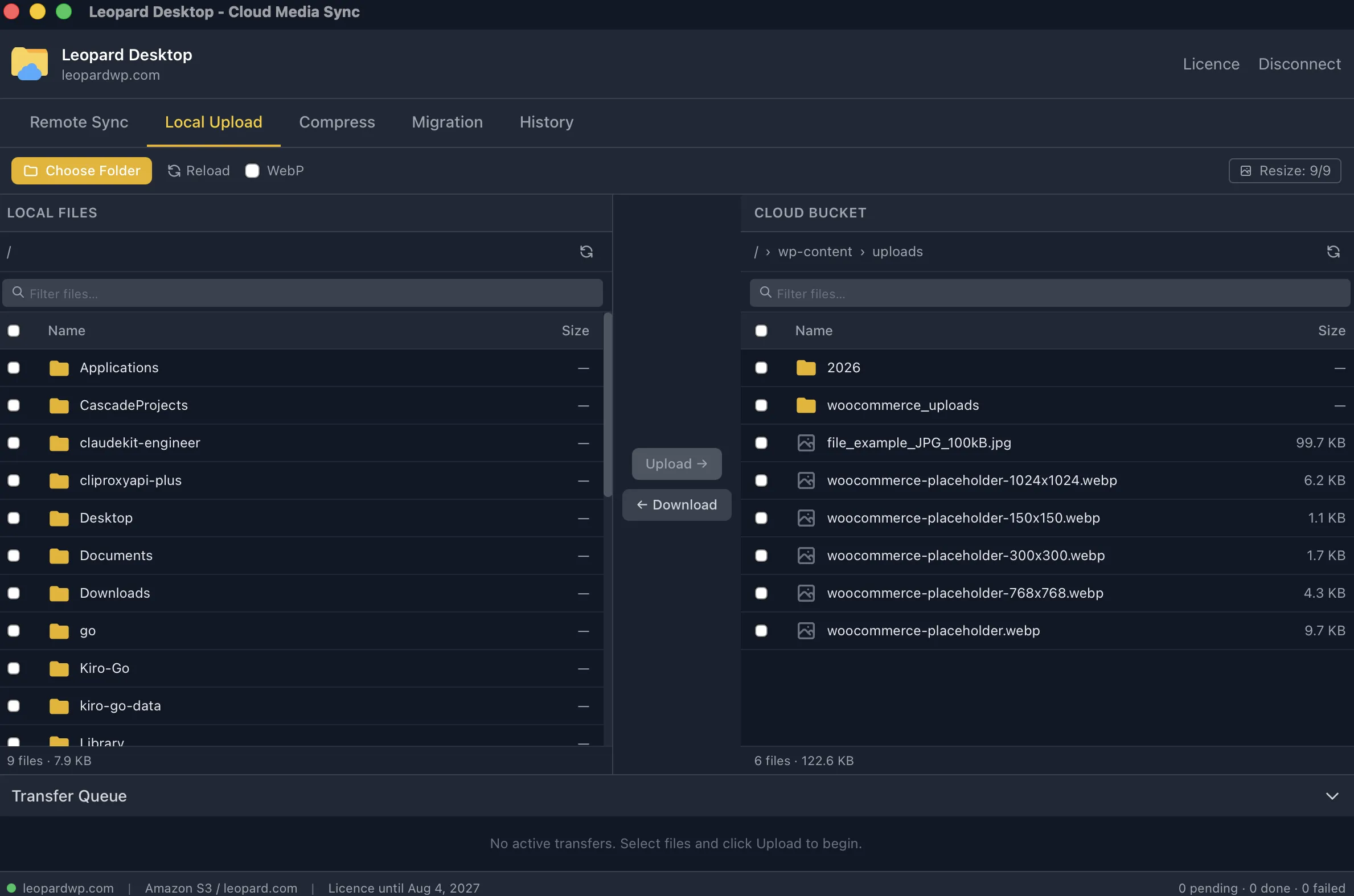
- Local Upload — upload images from your computer straight to the bucket via presigned URLs. The app resizes them to the exact WordPress sizes (and can convert to WebP); your site just registers the attachment.
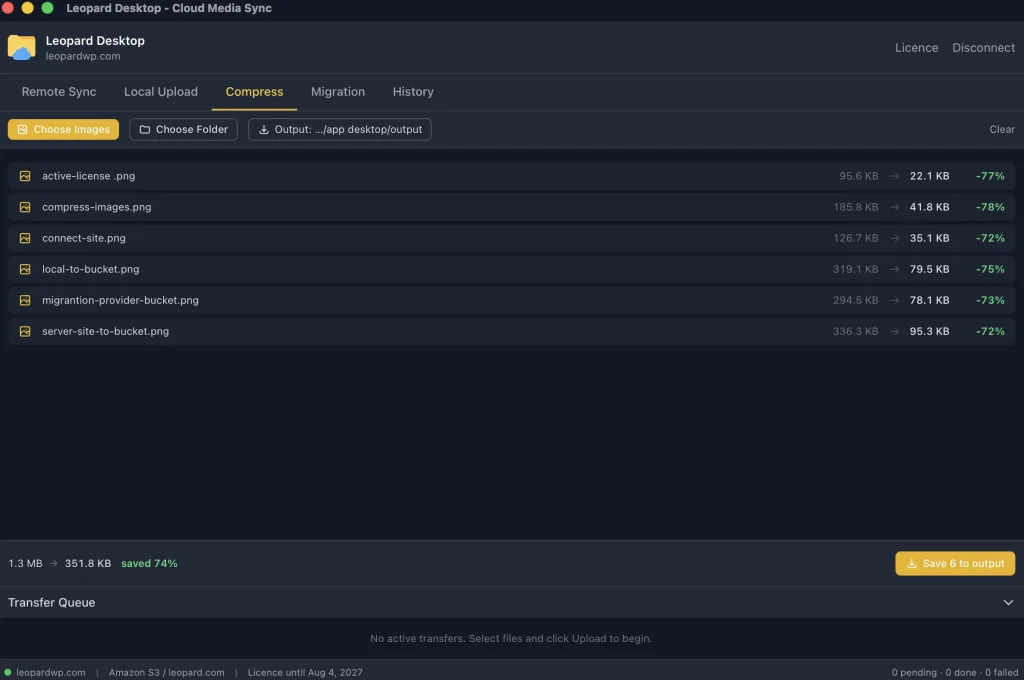
- Compress — convert images to WebP locally and fully offline, with no website connection needed, to save space before uploading.
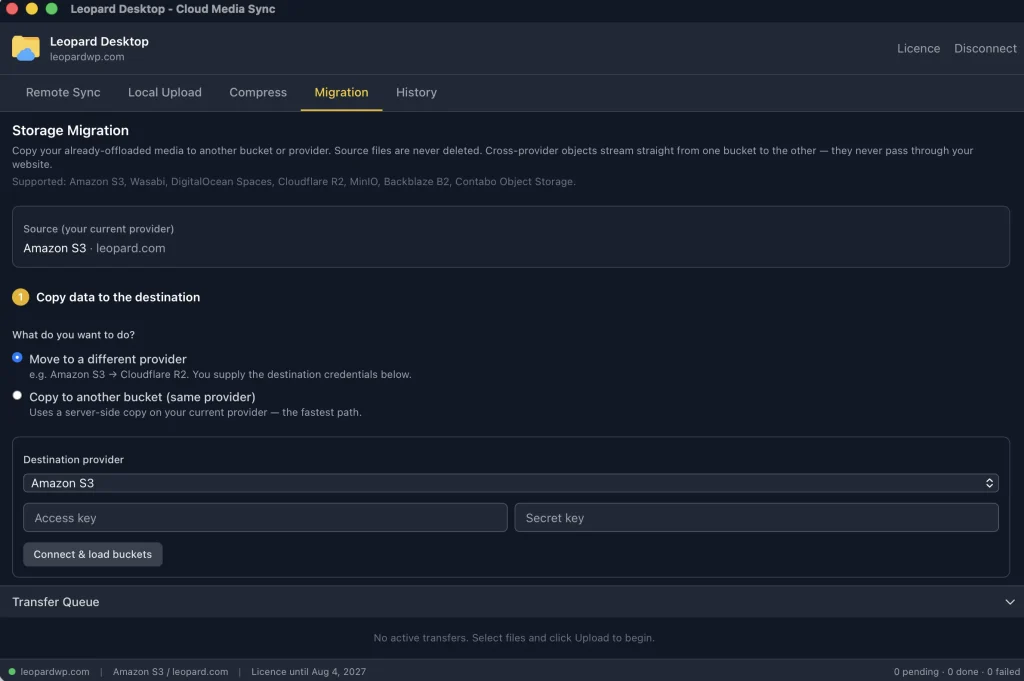
- Storage Migration — move all your offloaded media to another bucket or provider, rclone-style: compare quickly, copy only what’s missing, then point your site at the new destination.
- History — track your sync and upload batches, their status, and logs, so you can review and retry when needed.
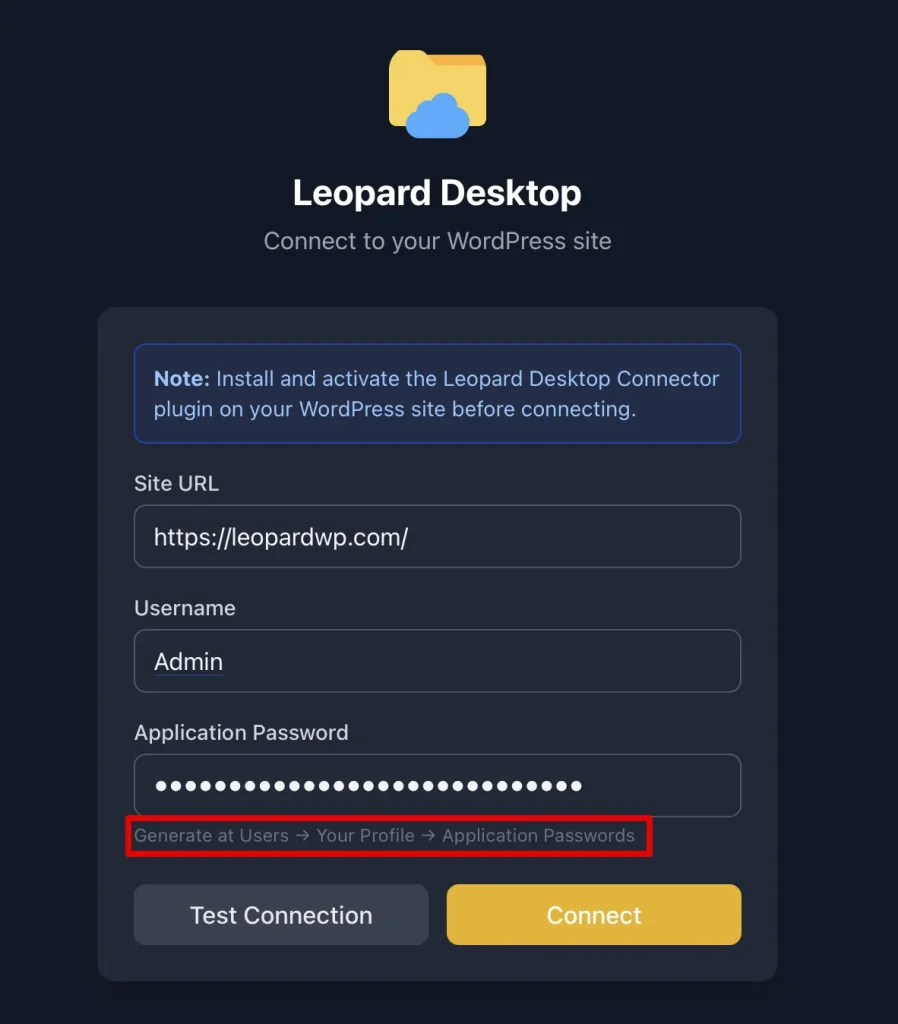
- Secure by design — sign in with a WordPress Application Password; credentials are kept in your operating system’s keychain.
Storage Migration, as fast as rclone
Migration is split into two clear steps so it never disrupts your live site. In Step 1, the app connects to both buckets over S3, lists and compares them, and copies only the objects that are missing. Within the same provider it uses a server-side copy so the bytes never leave the cloud; across providers it streams bucket to bucket, using multipart for large files. If the data is already in place (for example, copied earlier with rclone), just run “Check destination” when it reports the buckets are in sync, you can go straight to Step 2.
In Step 2, the app makes the destination your site’s active provider and refreshes the URL for every offloaded item. Your previous settings are backed up automatically, and a single Revert button undoes the switch if anything looks wrong.
Supported providers
Storage Migration supports S3-compatible services: Amazon S3, Wasabi, DigitalOcean Spaces, Cloudflare R2, MinIO, Backblaze B2, and Contabo Object Storage.
Why Leopard Desktop
Because the heavy work runs on your machine and the bytes go straight to the cloud, transfers never hit your server’s memory limit or execution timeout. Parallel transfers and multipart uploads keep things fast, migrations only copy the differences, and the two-step cutover with automatic backup and revert means you can move providers with confidence.
Download
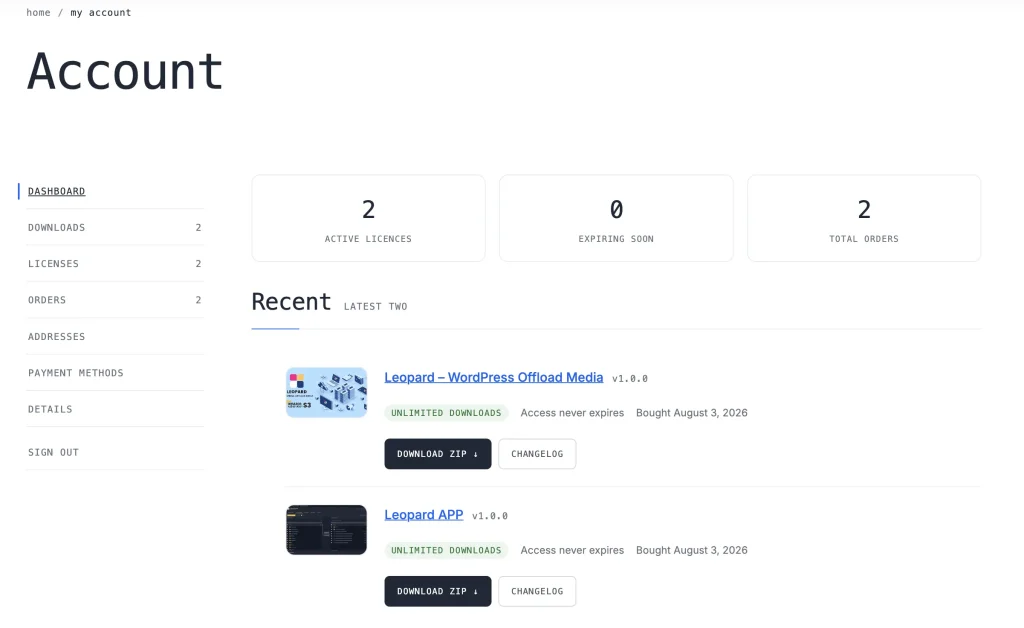
Choose the build for your operating system:
Required on macOS: the build is not Apple-signed, so after dragging the app into your Applications folder, run this command in Terminal once so macOS will open it:
xattr -dr com.apple.quarantine "/Applications/Leopard Desktop.app"
On Windows, if SmartScreen shows a warning, click More info → Run anyway.